All Raspberry Pis are factory tested before they leave the factory in Wales, UK. If your board isn't booting, please check these common issues before getting in touch, as most problems can be easily resolved.
🔌 Wrong HDMI Port
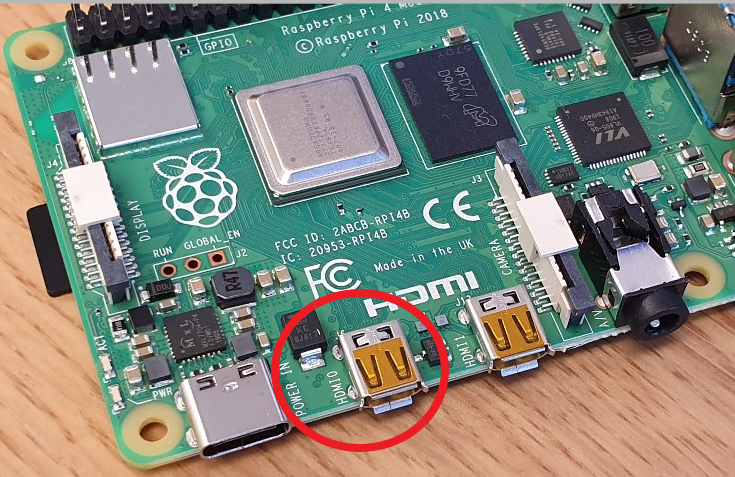
The Raspberry Pi 4 has two micro-HDMI ports. The connector on the left marked "HDMI0" is the primary display, so you'll need to ensure this one is always plugged in.
💿 Operating System
The Raspberry Pi 4 requires Raspberry Pi OS (formerly known as Raspbian) version Buster (June 2019) or later. Older OS versions released before the Pi 4 launched will not work. We recommend using the latest available release for the best performance, security and compatibility.
⚠️ Important: If you're upgrading from an older Raspberry Pi model, we strongly recommend a fresh install rather than moving your old SD card across, as this can cause compatibility issues.
✓ Option 1: Grab a pre-installed MicroSD card from our store (official Raspberry Pi A2-class card with Raspberry Pi OS ready to go)
✓ Option 2: Download the latest OS and flash it yourself using the free Raspberry Pi Imager
⚡ Power Supply
The Raspberry Pi 4 uses a USB-C power connector (not micro-USB like older models) and needs more power than previous versions. We only recommend the official 15W Raspberry Pi USB-C Power Supply (or greater, such as the 27W or 45W).
⚠️ Note: Power supplies from older Raspberry Pi models (micro-USB) will not physically fit the Pi 4. You will need a USB-C power supply.
📌 Re-seat Your SD Card
If your SD card isn't quite pushed in fully, the Raspberry Pi may show some lights but probably won't be able to boot.
Quick fix: Remove power → Take out SD card → Push it back in firmly → Try again
💳 SD Card Quality
Cheap and "no name" SD cards are a false economy. The Raspberry Pi forums show many posts from troubled users having issues with poor quality SD cards.
✓ Recommended:Official Raspberry Pi A2-class micro-SD cards for the best performance and quality
🔧 Corrupted SD Card
Sometimes SD cards corrupt no matter how careful you are. You might spot this if your Pi 4 doesn't boot and the green ACT LED flashes in a repeating pattern (check the LED warning codes table below for specific patterns).
✓ Quick fix: If you have a micro-SD card reader, it takes just a few clicks to reflash the card using Raspberry Pi Imager
💡 Check the Indication LEDs
The Raspberry Pi indication LEDs can tell you a lot about what's happening with your device. The Pi 4 boots from an EEPROM on the board and uses a more detailed set of flash codes than older models.
Helpful Resources:
LED Warning Codes (Raspberry Pi 4):
| Long Flashes | Short Flashes | Status |
|---|---|---|
| 0 | 3 | Generic failure to boot |
| 0 | 4 | start*.elf not found |
| 0 | 7 | Kernel image not found |
| 0 | 8 | SDRAM (synchronous dynamic random-access memory) failure |
| 0 | 9 | Insufficient SDRAM |
| 0 | 10 | In HALT state |
| 2 | 1 | Partition not FAT |
| 2 | 2 | Failed to read from partition |
| 2 | 3 | Extended partition not FAT |
| 2 | 4 | File signature/hash mismatch - Pi 4 |
| 4 | 4 | Unsupported board type |
| 4 | 5 | Fatal firmware error |
| 4 | 6 | Power failure type A |
| 4 | 7 | Power failure type B |